Overview
The Territory Insights page helps agents discover dealerships in their assigned or chosen region. It’s designed for efficient prospecting — allowing you to search by ZIP, region, and filters such as vehicle mix, pricing, and lot size.
Use this tool to identify high-potential dealerships that match your agency’s coverage criteria and quickly add them to your Saved Dealers list.
Step 1: Start a Search
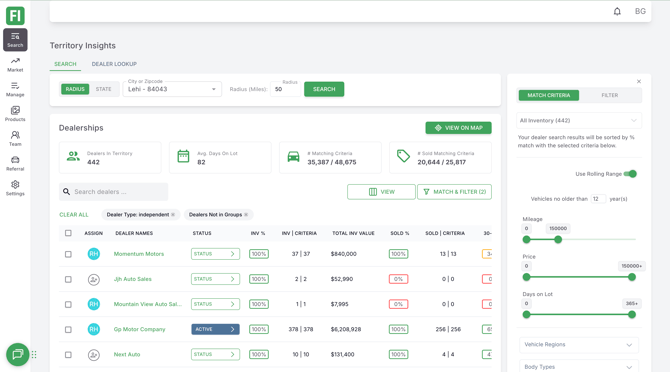
- Go to Search → Territory Insights from the left navigation menu.
- Enter your search criteria in the fields at the top of the page
- Region / ZIP Code – Search by city, ZIP, or state.
- Radius – Define the distance from your selected location.
- Click Search to display dealership results.


Step 2: View Dealership Results
After you click Search, the Territory Insights page displays all dealerships that match your selected filters. Each record includes dealership-level performance metrics and actionable options to help you manage or qualify prospects directly from the table.
Dealership Summary Tiles
At the top of the page, four key tiles summarize your results:
- Dealers in Territory – Total number of dealerships in the current search area.
- Avg. Days on Lot – Average number of days vehicles remain in inventory across all dealerships in view.
- # Matching Criteria – Total number of vehicles in inventory that meet your selected coverage or filter criteria.
- # Sold Matching Criteria – Total number of sold vehicles that meet your coverage or filter criteria.

Dealership Table Columns
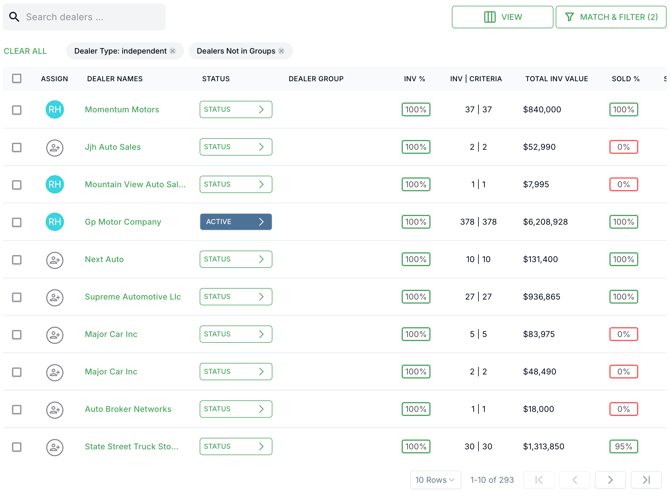
Each dealership in the results table includes the following data points:
|
Column |
Description |
|
Assign |
Checkbox to select one or more dealerships for bulk actions. |
|
Dealer Names |
The dealership’s name. Click to open detailed dealer information. |
|
Status |
Shows the relationship status (Active, Prospect, Ignore, Inactive). Can be updated individually or through bulk actions. |
|
Dealer Group |
Indicates whether the dealership belongs to a larger ownership group. |
|
INV % |
Percentage of vehicles in the dealership’s inventory that meet your matching criteria. |
|
INV | Criteria |
Displays two values: the total number of vehicles currently in inventory (first number) and the number of those vehicles that meet your selected criteria (second number). Example: `37 |
|
Total INV Value |
Combined retail value of all vehicles currently in inventory. |
|
SOLD % |
Percentage of all sold vehicles that match your selected criteria. |
|
SOLD | Criteria |
Displays two values: the total number of vehicles sold (first number) and the number of sold vehicles that match your selected criteria (second number). Example: `13 |
|
30-Day Turn |
Percentage of inventory sold within the past 30 days. |
|
URL |
Link icon to open the dealership’s public website. |
|
Notes |
Opens the notes drawer to view or add internal comments. |
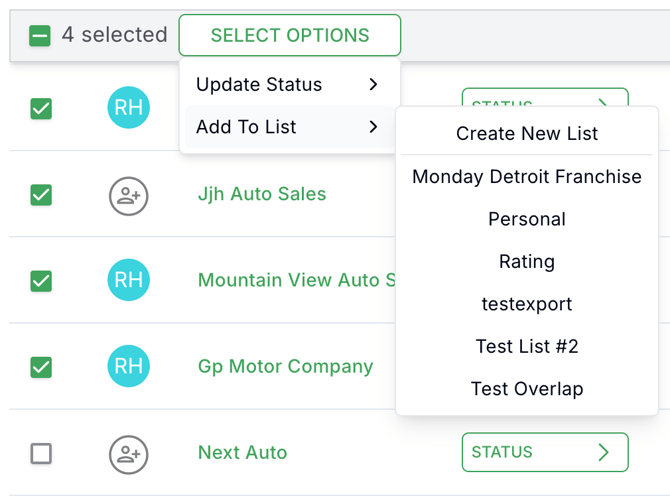
Bulk Selection and Status Updates
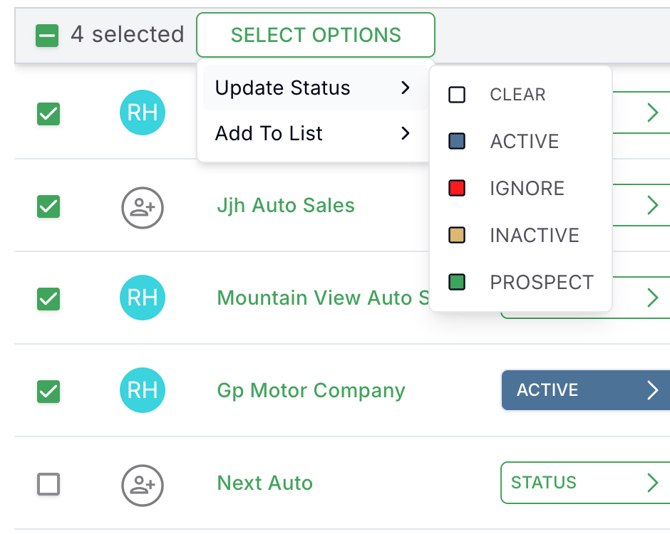
- Select one or more dealerships using the checkboxes in the Assign column.
- The Select Options menu appears at the top of the table.
- Choose one of the following actions:
- Update Status →
- Clear – Removes existing status.
- Active – Dealer is actively engaged.
- Ignore – Dealer excluded from outreach.
- Inactive – Dealer paused or unresponsive.
- Prospect – Dealer under evaluation.
- Clear – Removes existing status.
- Add to List → Add selected dealerships to a saved list for tracking or exporting.
- Update Status →
Individual Dealer Actions
- Click the Status button beside any dealer to update its relationship stage.
- Click the Notes icon to record updates or attach details.
- Use View on Map (top-right) to display dealership locations visually.
Quick Tips
- Use the search bar to locate dealers by name.
- Click Clear All to remove filters and start a new search.
Combine Dealer Type and Dealer Group filters to focus on independent or franchise dealers.
Step 3: Match & Filter Dealerships
Refine your results using the Match & Filter panel on the right side of the page.
You can adjust sliders or dropdowns for:
- Vehicle Mix (%) – Adjust by new/used ratio.
- Average Pricing – Filter by retail list price range.
- Average Days on Lot – Show dealers with fast or slow turn rates.
- Total Inventory Count – Focus on small or large dealerships.
- Dealer Type – Filter by Franchise or Independent.
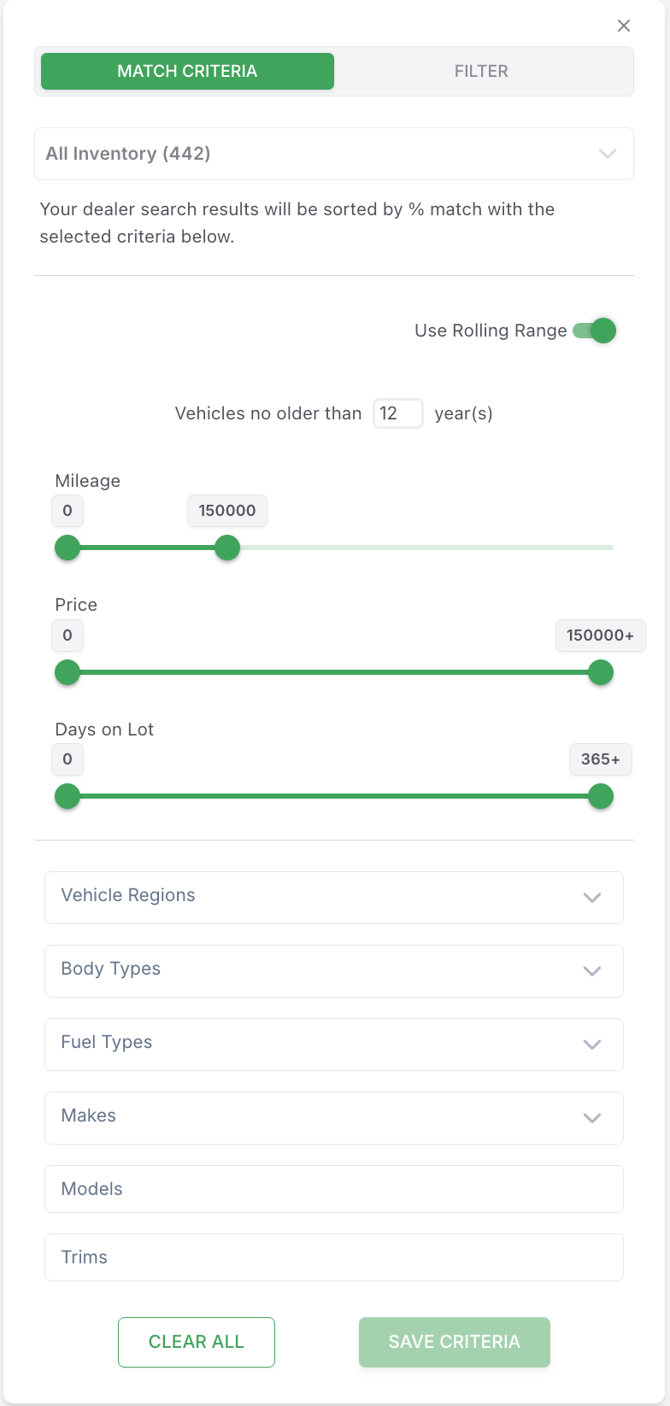
Filter:
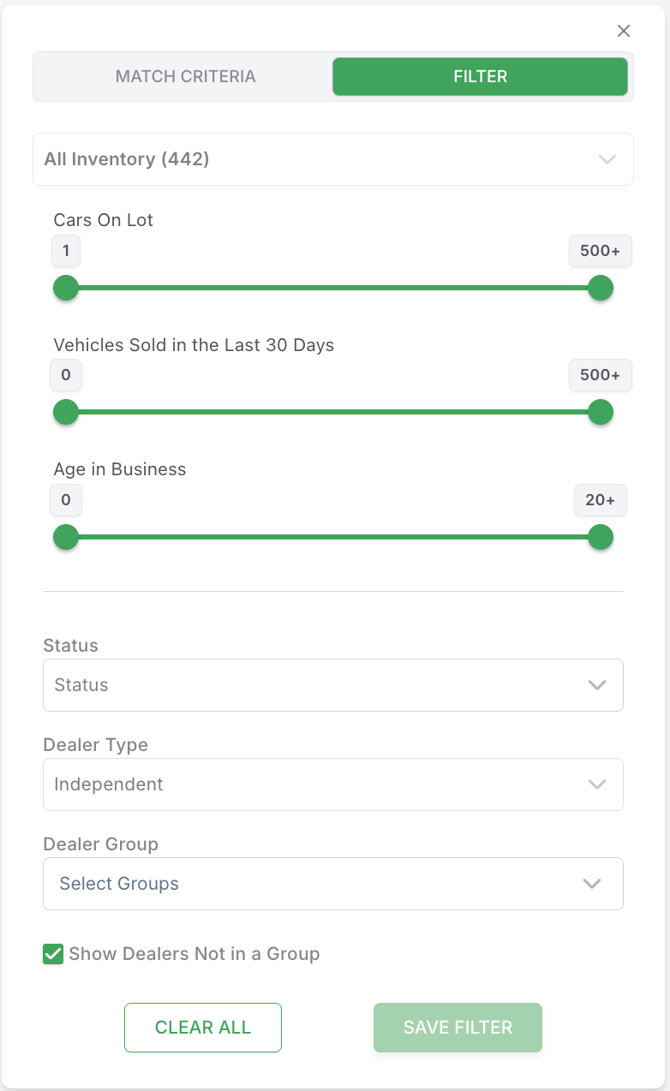
Once you’ve set your criteria, click Apply Filters to refresh your results.
Tips for Better Searches
- Use specific ZIP codes for targeted regional searches.
- Combine filters to find dealerships that best fit your agency’s ideal customer profile.
- Review the Market Insights page before outreach to strengthen your pitch with data.
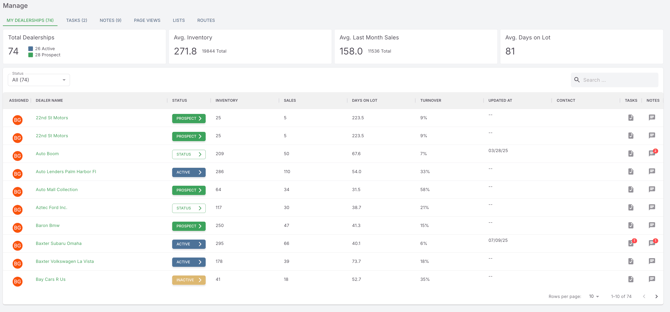
- Saved dealers automatically sync with the Manage module for follow-up tracking.
Troubleshooting
|
Issue |
Possible Cause |
Solution |
|
No results found |
Too many filters applied |
Clear some filters or widen your radius |
|
Incorrect dealer data |
Outdated inventory sync |
Refresh page or contact support |
|
Export not working |
Pop-up blocker enabled |
Allow pop-ups or try in another browser |
Need Help?
If results aren’t appearing as expected or data seems outdated, contact:
support@carketa.com
Include your territory name and any screenshots of the filters you applied.
Next Step
Once you’ve identified promising dealerships, open the Manage page to assign, comment, or update their status.